
Open and convert STEP, STL and DXF files online
Foremka reads and writes the common CAD and 3D printing formats, so a model from another program opens in the browser and leaves in the format your printer or cutter needs. Geometry is computed by the OpenCascade kernel, so STEP and IGES files come in as exact solids with true circles and arcs, not as triangles.
Supported formats
- STEP (.step, .stp): import and export, the standard CAD exchange format.
- IGES (.iges, .igs): import and export. Loose faces are stitched into solids.
- BREP (.brep): import and export, the kernel's native format.
- STL, OBJ, PLY and 3MF: mesh import and export. STL and 3MF are written Z up, as printers expect.
- GLB and glTF: import as a mesh.
- DXF: import into a sketch and export from a sketch.
- PDF and DXF from technical drawings, PNG from renders.
How to open a STEP file online
- Open the editor. You don't need an account.
- In the INSERT group click Insert CAD or mesh file and pick a .step or .stp file.
- Each solid becomes its own body. Rotate it, check sizes with Measure and look inside with Section Analysis.
A STEP file carries no feature history, but you can still drill, round and cut the imported bodies. The browser reads the file itself, so this works offline too. Insert from Folder browses a folder on your disk like a library of STEP, STL, OBJ, PLY and 3MF files; Chrome and Edge remember it between visits, Firefox and Safari until the page reloads.
How to convert STL to STEP
STL is a mesh of triangles and STEP stores exact solids, so you convert in between:
- Load the file with the same command; it comes in as a mesh body (repair it on the MESH tab if needed).
- Click Convert Mesh and keep the Prismatic method: it recognizes flat faces, cylinders, cones and spheres, so a technical part becomes a solid you can fillet.
- Click Export in the application bar and choose STEP.
Organic shapes such as a figurine or a scan stay flat facets. STL, OBJ and PLY store no units, so values are read as millimeters; fix a wrong scale with Scale, which works on the mesh itself right after import. More in Meshes.
DXF, cutting, drawings, sharing and renders
Insert DXF turns a drawing into an ordinary sketch, with a choice of layers (skip dimensions and notes), units and plane. The lines and arcs stay editable, and Extrude turns closed areas into a solid. A sketch saves from its menu in the tree (Save as DXF): R12 opens in practically any cutting software, R2000 writes curves exactly.
- Nest (UTILITIES tab) packs flat parts onto a sheet, small ones into the holes of large ones, as sketches ready to save as DXF.
- The DRAWING tab makes technical drawings with views, sections, dimensions and a parts list, saved as PDF or DXF.
- Share gives a link to a saved project. Recipients open it with no install, even on a phone, change the parameters you leave open and download STL in one click or another format.
- Renders on the bottom bar make a photorealistic image of the current view on the server (Blender Cycles), up to 1920×1080, with a choice of quality, background and floor. A rough preview appears within seconds; the final image takes from tens of seconds to a few minutes, depending on quality and glass in the scene.
Some tools run on the server and need a connection: IGES, mesh repair and conversion, nesting, drawing views, renders and saving several bodies into one file. Binary DXF and compressed GLB (Draco, meshopt) are not read.
See it in a tutorial
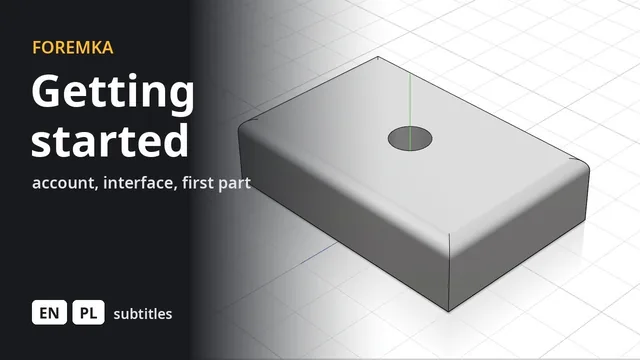 5:59
5:59Introduction to Foremka
Your account, the settings, the interface and moving around the view, then a first part you change later from the timeline.
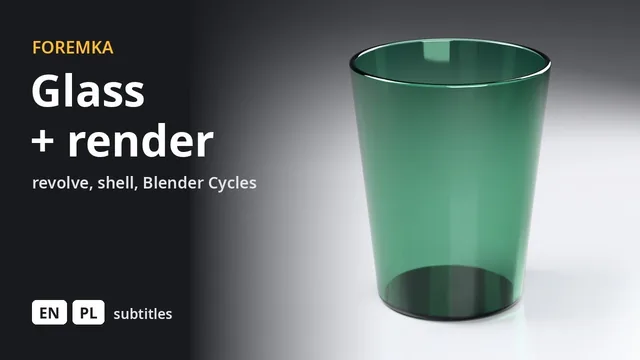 3:14
3:14A drinking glass, rendered in Blender
A profile revolved around an axis, a shell and fillets, then green glass and a photorealistic render straight from the editor.