
Constrained 2D CAD sketches in the browser
Almost every part in Foremka starts as a sketch: a flat drawing on a plane or on a face of a solid. You draw the shape roughly, then add dimensions and constraints, rules such as "this line is horizontal" or "these two sides are equal". The solver keeps all the rules satisfied at once, so changing one dimension reshapes the whole drawing.
Drawing tools
- Line draws a chain of connected segments. Finish with Esc or Enter, or click the start point to close the outline. Hold the button at the end of a segment and drag to make the next piece a tangent arc.
- Rectangle (2-point, 3-point or from the center), Circle (center, 2-point or 3-point), Arc (3-point, center or tangent), regular Polygon, Point, and Spline for smooth curves through points or shaped by control points.
- Text places lettering in a frame you span with two clicks, or runs it along a line, arc or circle. In the dialog you type the text (several lines if you like) and pick the font, bold and italic, letter height, character spacing and alignment. There are 28 bundled fonts, including stencil fonts whose letter centers stay put after cutting, plus the fonts installed on your computer and your own TTF, OTF or WOFF files. The letters are areas you can extrude right away, and Explode Text turns them into ordinary curves.
- As you draw, boxes by the cursor take exact sizes: a line's length and angle, a circle's diameter, a rectangle's width and height. Tab switches, Enter confirms.
- Snapping catches end points, midpoints, centers and points on curves, and a snap usually leaves a constraint behind. A line within 5° of horizontal or vertical gets that constraint on its own.
Dimensions and constraints
Dimension (D) works out what you clicked: a line gets its length, a circle its diameter, an arc its radius, two points their distance, two lines at an angle the angle. You type the value straight into the dimension label. It also accepts arithmetic and parameter names such as width / 2, so a whole design can be driven from the Parameters table.
The CONSTRAINTS group holds Horizontal, Vertical, Parallel, Perpendicular, Coincident, Equal, Tangent and Symmetry. Pick a tool and click the geometry; the tool stays active until you press Esc. Right-click a selection to see only the constraints that fit it. To remove a constraint, click its icon and press Delete.
A counter at the top shows the degrees of freedom left: how many ways the drawing can still move or change size. At zero it reads "Fully constrained". A constraint that contradicts the existing ones is not added, and a message tells you the sketch cannot be solved.
Editing and reusing geometry
- Trim removes a piece of a curve up to the nearest intersection. Drag across several curves to trim them all.
- Fillet and Chamfer soften corners, Offset draws a parallel outline, Mirror reflects geometry across a line, and Rectangular pattern and Circular pattern repeat it in rows or around a center. Patterns stay editable.
- Construction (X) turns lines into helpers that guide dimensions but are not part of the outline.
- Project brings body edges and curves from other sketches into the current one, and Intersect marks where the sketch plane cuts a body. A sketch started on a face of a solid gets that face's edges right away as purple reference lines, and when you snap to another body edge or corner while drawing, it is projected into the sketch for you.
- Import a DXF drawing, trace over a reference photo, or turn an image into curves with Trace image (needs a server connection).
- Ctrl+Z and Ctrl+Y undo and redo every step inside the sketch.
From sketch to solid
Every closed area is shaded blue and can be clicked. A circle inside a rectangle gives two areas, a plate with a hole and a disc, so you choose which one to extrude. It then goes into Extrude, Revolve and the other tools described under Solids and history. Change a dimension later and the solids built from the sketch update on their own.
Basic part design, which follows FreeCAD's Part Design tutorial step by step, goes from an empty screen to a fully constrained sketch and a finished part.
See it in a tutorial
 7:12
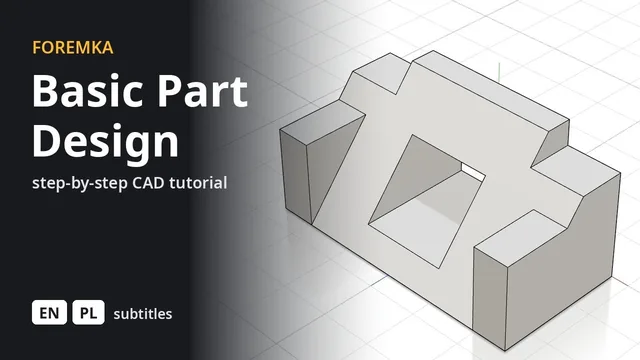
7:12Basic Part Design
The part from FreeCAD's Basic Part Design Tutorial, built feature by feature: sketches, extrusions, a mirror and projected edges.
 8:34
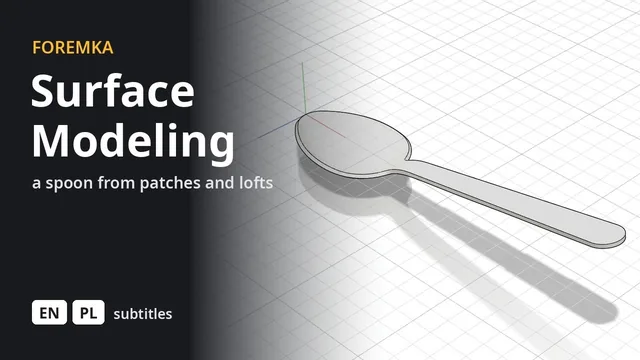
8:34Surface modeling a spoon
An outline, a side profile and cross sections, a patch over the bowl and a lofted handle, stitched and thickened into a solid.
 5:59
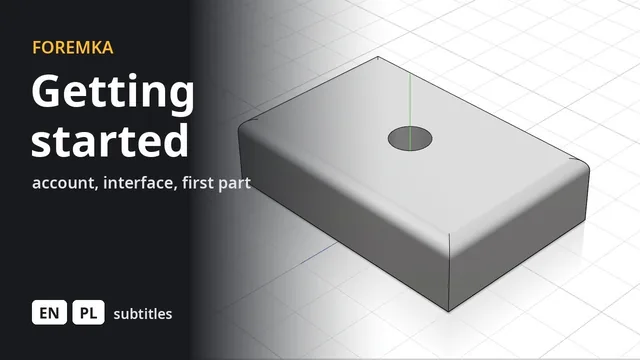
5:59Introduction to Foremka
Your account, the settings, the interface and moving around the view, then a first part you change later from the timeline.