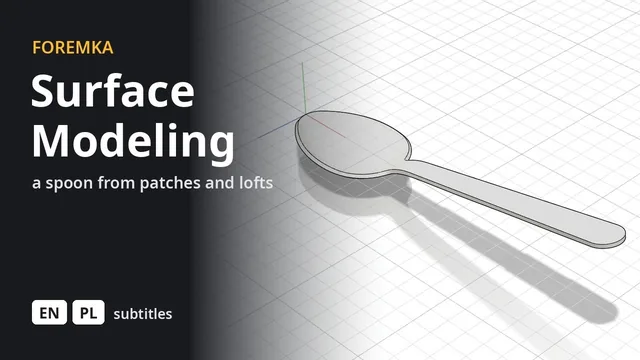
Free surface modeling in your browser
Some shapes do not come out of extruded profiles and cylinders. A spoon, a handle shaped to fit a hand or a rounded enclosure is easier to build from surfaces: thin skins with no thickness, stretched over curves you draw in a sketch. In the SURFACE tab you create those skins, cut them to size, join them and turn them into an ordinary solid you can 3D print or export as STEP.
Where surfaces come from
- Extrude, Sweep and Loft work the same way as for solids. What you pick decides the result: clicking inside a closed sketch region gives a solid, clicking the curve itself (open or closed) gives a surface.
- Patch spans a surface over a closed boundary made of sketch curves or body edges. Interior rails and points are optional curves and points the surface has to pass through. Without them the patch simply fills the boundary.
- Offset copies an existing surface at a given distance, for example to get the inner side of a wall, and keeps the original.
Cutting, joining and adding thickness
- Trim cuts away part of a surface using another surface, a body or a sketch curve. You click the piece that should stay, because a single cut can leave more than two pieces.
- Extend lengthens a surface past its edge by a set distance, either straight or following its curvature.
- Stitch joins several surfaces into one. If no gaps are left, the result closes into a solid straight away. Otherwise the message counts free edges (the gap is too wide) and overlapping ones.
- Unstitch breaks a body or surface into separate faces, for example to replace one of them.
- Thicken gives a surface a wall thickness and turns it into a solid. The thickness goes to one side or both, and you can thicken only selected faces, even from several surfaces.
What it looks like in practice
This is how the spoon in the surface modeling tutorial is made:
- Draw the outline of the spoon from the top and its profile from the side, each in its own sketch.
- Add two cross sections across the bowl, one arc each.
- Patch: the bowl outline is the boundary, the side profile and both cross sections are interior rails. The patch passes through all three curves.
- Loft from the edge of the bowl to the end of the handle, guided along the side profile with the Centerline field.
- Stitch the bowl and the handle together, then Trim the handle to the shape of the top outline.
- Thicken by 2 mm inward, so the outside keeps the exact shape of the sketches.
Things to keep in mind
- A surface has no volume. Before 3D printing, stitch it into a closed body or thicken it.
- A patch follows its boundary but does not blend smoothly into the faces next to it. You shape the middle with rails and points.
- After a sketch change, Sweep updates by itself. Loft picks up the new curves when you reopen it from the timeline with Edit and confirm. An extruded surface lets you change the distance that way, but its profile stays as first created. Patch, Trim, Extend, Stitch, Unstitch and Offset cannot be edited yet: to change one, delete it from the timeline and do it again.
- Trim, Extend, Stitch, Unstitch, Offset and a patch over a boundary that is not flat are computed on the server. Without a connection they are unavailable, while extruded surfaces, Thicken and flat patches keep working in the browser.
- Soft shapes without clear guiding curves are often quicker to sculpt.