
Parametric 3D solid modeling in the browser
A solid in Foremka is built one step at a time: sketch, extrude, cut, hole. Each step lands on the timeline at the bottom of the screen and keeps its settings, not just its result. Hours later you can change one dimension in the first sketch and watch the whole part rebuild. Geometry comes from the OpenCascade kernel, so a circle stays a circle rather than a polygon, and the model exports to STEP without losing precision (see file formats).
Building a solid
- Extrude (E) pushes a sketch area out by a distance: one way, symmetrically, or both ways by different amounts. Instead of a number you can extend "To Object" (a plane or flat face) or cut through "All". A negative distance flips the direction.
- Revolve (R) spins a profile around an edge, an origin axis or a sketch line, by 360° or a set angle: a glass, a shaft, a knob.
- Sweep carries a profile along a sketch curve. On the way it can twist, rotate and change size following a second curve, the guide rail.
- Pipe is the quickest way to a rod or a wire: a curve plus a diameter.
- Loft blends cross-sections into one smooth solid, say a square at the bottom and a circle at the top. It can follow a centerline and rails (computed on the server).
- Ready-made shapes: box, cylinder, sphere, torus, plus Spur Gear and Rack, generated from the number and size of the teeth.
Extrude, Revolve and Loft can also add to an existing body, cut into it or keep only the overlap. A cut that splits a body leaves separate bodies.
Holes, threads and repeats
- Hole (H): click a face where the center should be and pick simple, counterbore (for a bolt head) or countersink (for a flat head). Through all or to a depth, with a drill-point bottom, and threaded if needed.
- Thread on a shaft or inside a hole: ISO metric, trapezoidal, UN, ACME or your own. By default it is only drawn on the surface to keep the model light; "Modeled" makes real turns with a simplified triangular tooth.
- Profile Thread gives an exact shape, trapezoidal for example: draw the tooth, set pitch and length, right- or left-handed.
- Circular Pattern and Rectangular Pattern repeat a body or a single feature, for example one hole turned into a dozen, around an axis or in rows and columns. Mirror reflects bodies or features across a plane.
- Construction planes (offset, angled, midplane, tangent and more) give you somewhere to sketch where no face exists.
Timeline and parameters
- Double-click a tile to reopen a feature with its saved settings: extrudes, revolves, holes, threads, mirrors, lofts, circular patterns, ready-made shapes. Double-click a sketch to edit it.
- Drag the marker left to see the model at an earlier stage without deleting anything. A feature added there is inserted mid-history, before the later steps.
- Changing a sketch updates what was built from it, revolve axes and sweep paths included.
- Parameters is a table of named values. Every length field accepts an expression such as
thickness * 2, and changing a parameter rebuilds everything that uses it.
In the Introduction tutorial the plate gets thicker and the hole and fillets follow.
Limitations
- Rectangular patterns and patterns along a path cannot be reopened for editing; delete and recreate them.
- Sweep always creates a new body. Use Join to merge it with the rest.
- A path picked with the mouse is one flat curve from one sketch. A path winding freely through space, such as a spring, can be built with a script.
See it in a tutorial
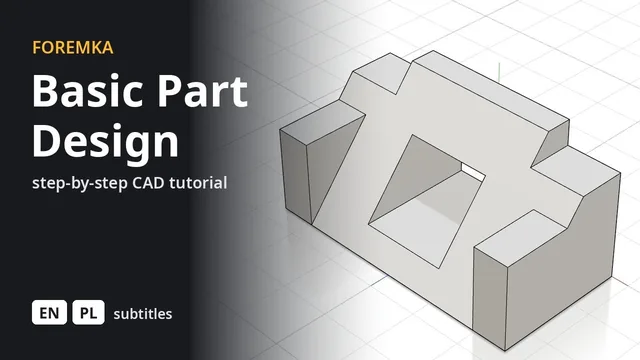 7:12
7:12Basic Part Design
The part from FreeCAD's Basic Part Design Tutorial, built feature by feature: sketches, extrusions, a mirror and projected edges.
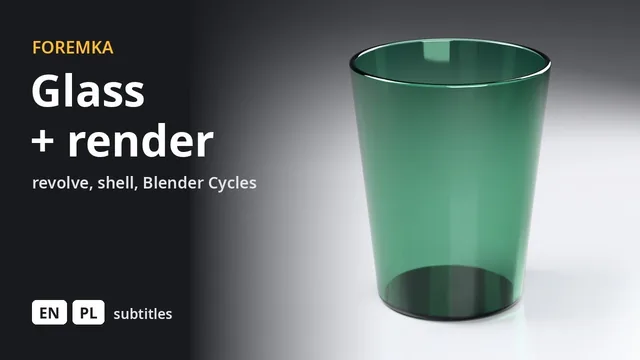 3:14
3:14A drinking glass, rendered in Blender
A profile revolved around an axis, a shell and fillets, then green glass and a photorealistic render straight from the editor.
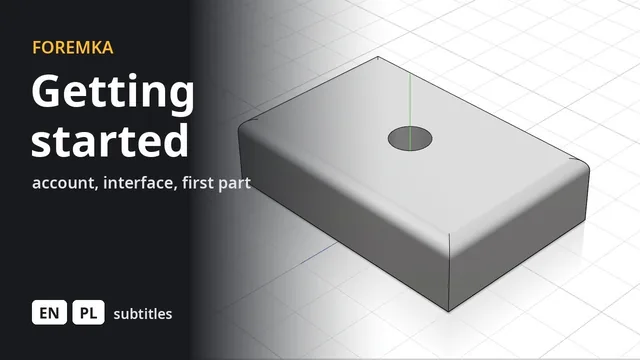 5:59
5:59Introduction to Foremka
Your account, the settings, the interface and moving around the view, then a first part you change later from the timeline.