
Fillets, chamfers and shells for 3D models
Once the basic shape is there, the finishing begins: sharp edges get rounded or cut back, a solid block gets hollowed, bodies get joined or subtracted. The tools in the MODIFY group work on an existing body. Click an edge or a face on the model, set a value and the preview updates right away. Each operation lands on the timeline, so you can change a radius or a wall thickness later with a double-click.
Edges: fillet and chamfer
- Fillet (F) rounds the edges you pick. Edges that run smoothly into each other, such as the whole top rim once the vertical corners are rounded, go together, so one click is enough. The radius can be constant, variable (different at the start and end of an edge) or elliptical, reaching a different distance onto each of the two faces.
- Chamfer cuts an edge flat, by one distance or by two different ones.
- Click edges in the view to add or remove them, and type the value or drag the arrow on the model. All edges must belong to one body. Ctrl (or Shift, set in the settings) adds more items to a selection.
Shells and walls
- Shell hollows a solid and leaves walls of the thickness you set. Click the faces to remove, such as the top of a cup. With none picked the shell is closed: the body gets a cavity inside. Inner corners can be rounded or sharp.
- Split into Walls cuts a closed shell into separate panels, joined with mitres (45° at a right-angled corner) or with butt joints. One box becomes a set of panels ready for cutting, and Explode moves them apart so you can see each one.
- Thicken turns a thin surface into a solid, see Surfaces.
Other shape changes
- Draft tilts selected faces by an angle measured from a neutral plane, so a cast part releases from its mould.
- Rib grows from a sketch line until it meets the body and stiffens it. Web is a panel placed between two faces.
- Press Pull (Q): click a face and push it out or in, either by dragging the arrow in the view or by typing a distance.
- Join, Cut and Intersect merge bodies, subtract one from another, or keep only the shared volume. "Keep Tools" leaves the cutting bodies in place.
- Split Body cuts a body into separate bodies with a plane, a surface (a bent one too, all of it at once) or another body; the split can be changed later from the timeline. Move/Copy, Scale and Align (one body's face against another's) position bodies.
- Delete Face, Offset Face, Split Face and Replace Face change individual faces. Deleting a face closes the gap by extending its neighbours, handy for simplifying imported models.
Clicking a curved face, such as the side of a cylinder, selects the whole face, not one strip of it.
Things to watch
- A radius that is too large, or a chamfer wider than the face next to it, will not go through. The result is checked and you get a message instead of a broken body; a smaller value or fewer edges at once usually helps.
- If sharp shell corners cannot be computed, rounded ones are used instead. The preview shows this before you confirm.
- When you edit from the timeline you change the values: radius, distance, thickness, angle. The edges and faces you picked stay as they were when the feature was created.
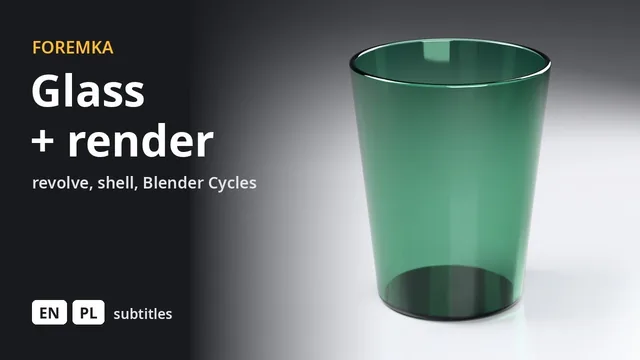
- Order matters. In the Drinking glass tutorial the rim is rounded after the shell, because the rim edges only exist once the solid is hollowed.
- Rib, Web and the single-face operations run on the server, so they are unavailable without a connection. The other tools on this page also work offline.
See it in a tutorial
 3:14
3:14A drinking glass, rendered in Blender
A profile revolved around an axis, a shell and fillets, then green glass and a photorealistic render straight from the editor.
 5:59
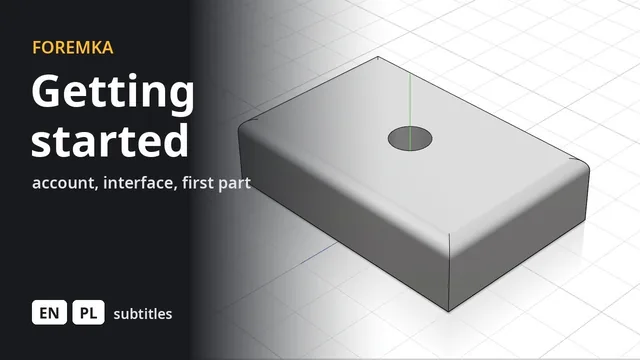
5:59Introduction to Foremka
Your account, the settings, the interface and moving around the view, then a first part you change later from the timeline.