3D assemblies online: joints, motion, collisions
An assembly is a model made of several parts that know how they are attached. In Foremka you turn bodies into components, connect them with joints and drag a part with the mouse to see how it moves: a shaft turns in a bearing, a carriage slides along a rail up to a set limit, two gears turn together. It runs in the browser, with no install and no account.
What you can do
- Components. Turn bodies into a component with New Component or from the right-click menu. New Occurrence adds another copy that shares its shape with the original.
- Seven joint types: Rigid, Revolute (a hinge or an axle), Slider (a carriage on a rail), Cylindrical (turn and slide on one axis), Pin-Slot (turn and slide along a slot), Planar (slide on a plane) and Ball (turn any way around a point).
- Joint limits: a minimum, a maximum and a rest position, typed in or set by dragging an arrow in the view.
- Motion Link ties two joints with a fixed ratio, so a large gear turns a small one twice as fast or a pinion drives a rack.
- Contact Set: the chosen components stop the moment they touch while you drag a part or move a slider in Drive Joints. Instead of picking components you can use Enable All Contact, and then every pair of parts stops on touch. Animations and motion studies do not check contact. Interference in the INSPECT group lists overlapping bodies with the volume they share.
- Motion Study plays the mechanism back from keyframes on a timeline and saves it as a video file.
- On the ANIMATION tab, Assembly Animation shows the parts going into place one by one, and the recording saves as a WebM file.
- On the DRAWING tab an assembly gets a parts list with balloons, and the sheet saves as PDF or DXF (see file exchange).
Ready-made parts
Standard Part in the INSERT group opens a catalog of 1,500 parts: ball and linear bearings, shaft supports, linear rails, screws, nuts, washers, retaining rings, steel sections and aluminum slot profiles. Search by designation, such as M3x10 or HEB 200. Each part comes in as a component with steel, aluminum or rubber already where it belongs. The models come from the FreeCAD library (1,498 parts, CC BY 3.0) and Printables (two), and every entry names the author and license.
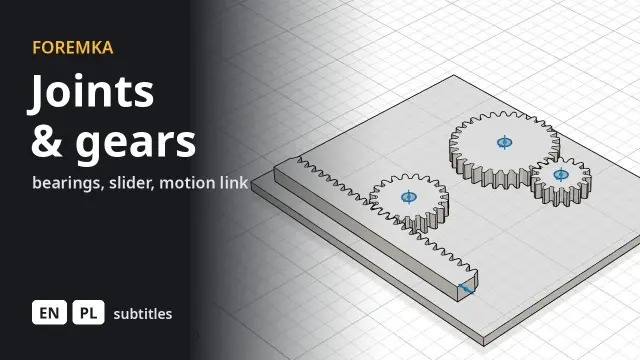
Spur Gear and Rack (CREATE group) build gears from the number and size of teeth. Insert Project brings in another saved project as a component, and the McMaster-Carr dialog takes a part number and the STEP file you download from its product page.
Assembly animation
On the ANIMATION tab you build an animation in storyboards (separate scenarios), each on its own tab in the panel below the view. A new storyboard starts from the assembled model or where the previous one ended. Each move is a bar on the component's track: drag it to shift it in time, or drag its edge to change its length.
The quickest start is Assembly Animation. Foremka works out from the shapes which order to take the parts off in and which way each one slides out. It makes two storyboards. "Disassembly" takes the parts off one by one and lays them flat on the table around the assembly, each where possible on the side it comes back in from. "Assembly" flies them back one by one in an arc, and each slides into place. Grounded components stay put.
Your own moves start at the playhead. Transform Components moves and rotates the selected part. Auto Explode: All Levels spreads the parts into an exploded view, each the way it pulls out, and Auto Explode: One Level moves whole subassemblies. Show/Hide hides a part or brings it back, and View stores a camera position for the camera to glide to. Play runs the animation, and you drag the playhead along the time ruler. The assembly itself does not change: leave the tab and every part is back in place. Publish Video records the current storyboard or all of them into a WebM file.
How it works in practice
- Insert a shaft support from the library, right-click it in the tree and choose Ground so it stays put.
- Draw a shaft with Cylinder and turn it into a component.
- Click Joint (J) and hover over a part. Snap points appear at circle centers, edge ends and midpoints, and face centers. Pick the end of the shaft, then the hole in the support, and the shaft moves into place.
- The Position tab shifts and rotates the part relative to the snap point; the Motion tab sets the joint type and its limits.
- Confirm and drag the part. It moves only the way the joint allows.
If the parts are already in place, As-built Joint connects them without moving them. The Joints, standard parts and gears tutorial walks through a bearing block on a shaft, a gear pair and a rack.
Things to keep in mind
- Joints connect components, not loose bodies. Turn bodies into components first.
- Library parts come in at the origin, so a second copy lands inside the first. Place it with a joint or Move component.
- A jointed component moved by hand snaps back to where the joint puts it. Capture Position keeps the new placement.