
A drinking glass, rendered in Blender
A profile revolved around an axis, a shell and fillets, then green glass and a photorealistic render straight from the editor.
Step by step
Exactly what the narrator says, chapter by chapter. Click the time next to a chapter to jump the video there.
0:00 Introduction
- In this tutorial we model a drinking glass in Foremka, give it green glass and render a photorealistic image in Blender.
- The glass is a profile sketch revolved around the vertical axis, hollowed with Shell and rounded with Fillet.
0:19 Profile sketch
- Click Sketch and choose the XY Front plane.
- Zoom out with the wheel and pan the view, so the whole glass, a hundred millimetres tall, will fit.
- The profile is half of the cross section. Choose Line, start at the origin, type 30 for the bottom and press Enter.
- Click up and to the right for the slanted wall, then on the vertical axis, and close the profile at the origin.
- Dimension the top line to 40 millimetres and the height to 100. The sketch is fully constrained.
- Finish the sketch and click Fit to frame it.
1:07 Revolve
- Select the profile and click Revolve.
- Click Select axis, then the green Y axis at the origin. Revolve turns the profile a full 360 degrees.
- Click OK and Fit. For now the glass is solid.
1:28 Shell
- Shell hollows a body. Click Shell, then the top face: it will stay open.
- Set the wall thickness to 2.5 millimetres and click OK.
1:41 Fillets
- Fillet rounds edges. Click Fillet, then the bottom edge, and set the radius to 3 millimetres.
- A second fillet softens the rim: click the outer and the inner edge, radius 1 millimetre.
2:03 Green glass
- Now the material. Appearance is in the more menu of the Modify group. Type green in the filter and click Glass, bottle green.
- The viewport only approximates glass. A realistic image comes from the render.
2:20 Render in Blender
- Set up the shot: orbit the view a little and zoom in, so the glass fills the frame.
- The camera button in the bottom bar opens the render panel. The image is computed on our server by Blender, with the Cycles engine.
- Choose the quality, the background and the floor: here High, a gradient and a glossy floor.
- Click Render. The image refines in a few passes, and the panel shows each of them.
- The finished render lands in the gallery. Click it to see it full size. The arrow downloads the image.
- That is the glass: a revolved profile, a shell, two fillets, a material and a render.
More tutorials
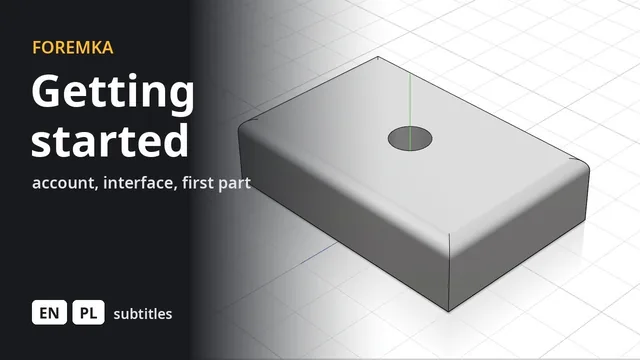 5:59
5:59Introduction to Foremka
Your account, the settings, the interface and moving around the view, then a first part you change later from the timeline.
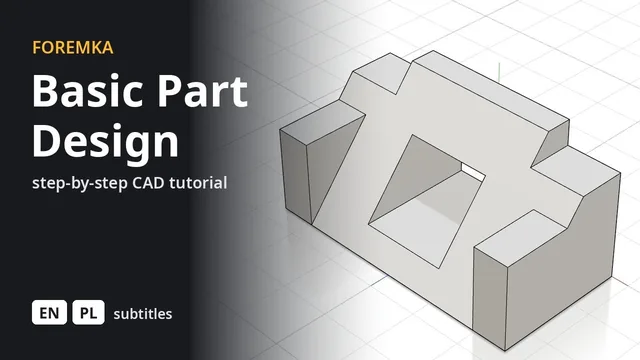 7:12
7:12Basic Part Design
The part from FreeCAD's Basic Part Design Tutorial, built feature by feature: sketches, extrusions, a mirror and projected edges.
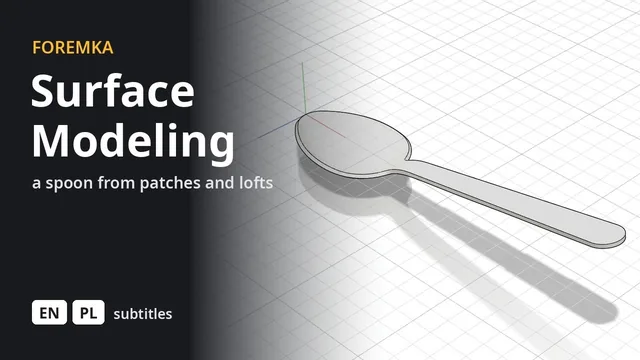 8:34
8:34Surface modeling a spoon
An outline, a side profile and cross sections, a patch over the bowl and a lofted handle, stitched and thickened into a solid.
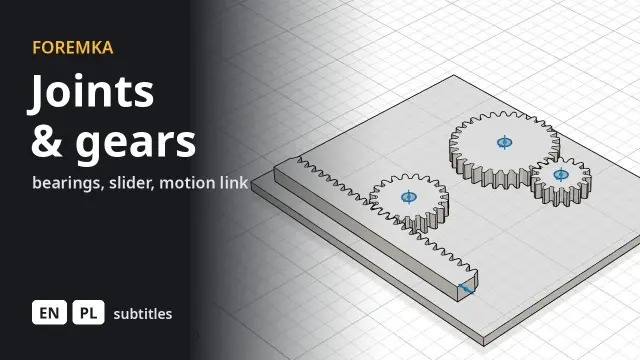 8:30
8:30Joints, standard parts and gears
Bearings from the parts library, a block sliding along a shaft between limits, two gears turning together and a rack that turns rotation into straight motion.