
Introduction to Foremka
Your account, the settings, the interface and moving around the view, then a first part you change later from the timeline.
Step by step
Exactly what the narrator says, chapter by chapter. Click the time next to a chapter to jump the video there.
0:00 Welcome
- Foremka is a CAD program that runs in your web browser. There is nothing to install: open the page and start modelling.
- In this video we create an account and sign in, go through the settings and the interface, and build a first simple part.
0:20 Creating an account
- Without an account you work as a guest. Click the avatar in the top right corner: the menu says Guest.
- A guest's projects are tied to this browser. To open them on any computer, create an account: click Sign in.
- You can sign in with an email and password, or with a Google account. We don't have an account yet, so click Sign up.
- Enter your email, an optional display name and a password of at least eight characters.
- Click Sign up. You are signed in straight away, and the avatar now shows your initials.
1:04 Signing in
- The same menu has Sign out. Let's sign out and sign back in with the email and password.
- Avatar, Sign in, email, password, and the Sign in button.
1:22 Settings
- The settings are in the same menu, under Settings.
- Language: the interface is in English or Polish, and it switches at once.
- Length unit: the unit for showing and entering dimensions. The model itself is always computed in millimetres.
- Multi-select key: Ctrl or Shift. Hold it and click to add more items to a selection.
- View rotation: around the vertical axis of the scene, or free.
- Offline work: Foremka keeps copies of your projects in the browser, so you can open them without a connection.
- Every change applies immediately. Click Close.
- Next to the avatar, this button switches the theme: light, system or dark.
2:14 The interface
- At the top is the application bar: new project, open, save, files, export and sharing, command search, undo and redo.
- Below it is the ribbon. Its tabs switch workspaces: Solid, Surface, Mesh, Form and Utilities.
- Tools are grouped by purpose. The three dots open the tools that did not fit on the ribbon.
- On the left is the browser: a tree of everything in the design, with the origin planes, bodies, sketches and construction geometry. The eye shows or hides an item.
- The menu button opens the projects panel with your saved projects. It is still empty.
- Press S to search for any command by name, and Enter to run it.
3:07 A first part
- Now a first part. Click Box: a 20 millimetre cube appears, and the dialog lets you change it.
- Make it a plate, 60 by 10 by 40 millimetres, and move its origin so it sits centred on the floor. Click OK.
3:30 Moving around the view
- Drag with the left mouse button to orbit around the part.
- Drag with the right button to pan, and turn the wheel to zoom towards the cursor.
- Click a face of the ViewCube for a standard view, and the house to go back to the home view.
- Fit, in the bar at the bottom, frames the whole model. Zoom out a little with the wheel.
4:01 A hole
- Next, a hole. Click the top face and then Sketch: the new sketch lies on that face.
- Choose Circle, click near the middle of the face, type 16 for the diameter and press Enter.
- Finish the sketch, go back to the home view, select the circle and click Extrude.
- Set Operation to Cut, Extent Type to All and Direction to Symmetric: the hole goes through the plate, however thick it gets. Click OK.
4:41 Rounding and material
- Fillet rounds edges. Click Fillet, then the four top edges of the plate, and set the radius to 3 millimetres.
- Appearance gives the part a material. It sits in the more menu of the Modify group. Click a material to apply it.
- Measure shows sizes, areas and volume. Click the top face.
5:10 Changing a step
- Every step is on the timeline at the bottom. Double-click the box to change it.
- Make the plate 15 millimetres thick. The hole and the fillets that come later are rebuilt automatically.
5:25 Saving
- Press Ctrl+S to save. Give the project a name and click Save.
- The project is now in your account. It shows up in the projects panel, and after signing in you can open it on any computer.
- Export saves the model as STEP, IGES, STL and other formats.
- That is the introduction. The next tutorial, Basic Part Design, covers sketches, constraints and features step by step.
More tutorials
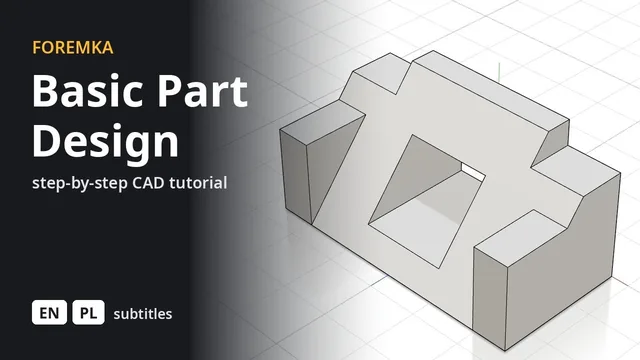 7:12
7:12Basic Part Design
The part from FreeCAD's Basic Part Design Tutorial, built feature by feature: sketches, extrusions, a mirror and projected edges.
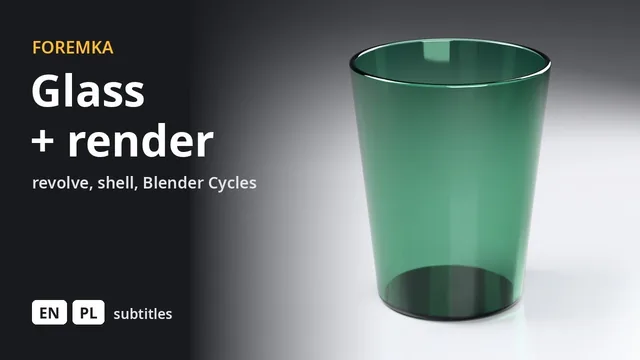 3:14
3:14A drinking glass, rendered in Blender
A profile revolved around an axis, a shell and fillets, then green glass and a photorealistic render straight from the editor.
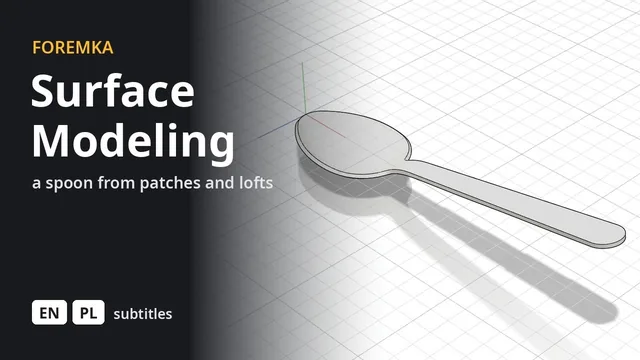 8:34
8:34Surface modeling a spoon
An outline, a side profile and cross sections, a patch over the bowl and a lofted handle, stitched and thickened into a solid.
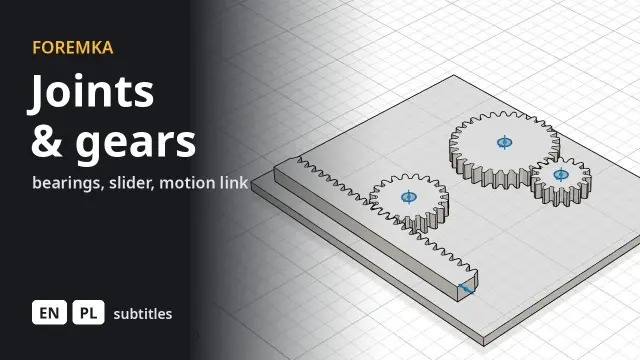 8:30
8:30Joints, standard parts and gears
Bearings from the parts library, a block sliding along a shaft between limits, two gears turning together and a rack that turns rotation into straight motion.